Web Design
Scroll animation in Webflow: a world map that zooms as you scroll
Key takeaways
- The length of the scroll distance sets the pace of the animation
- A sticky wrapper with overflow hidden keeps the map in view
- A single timeline with scrub controls titles, map switch, zoom and pins
- The camera move comes from one image, not from a video
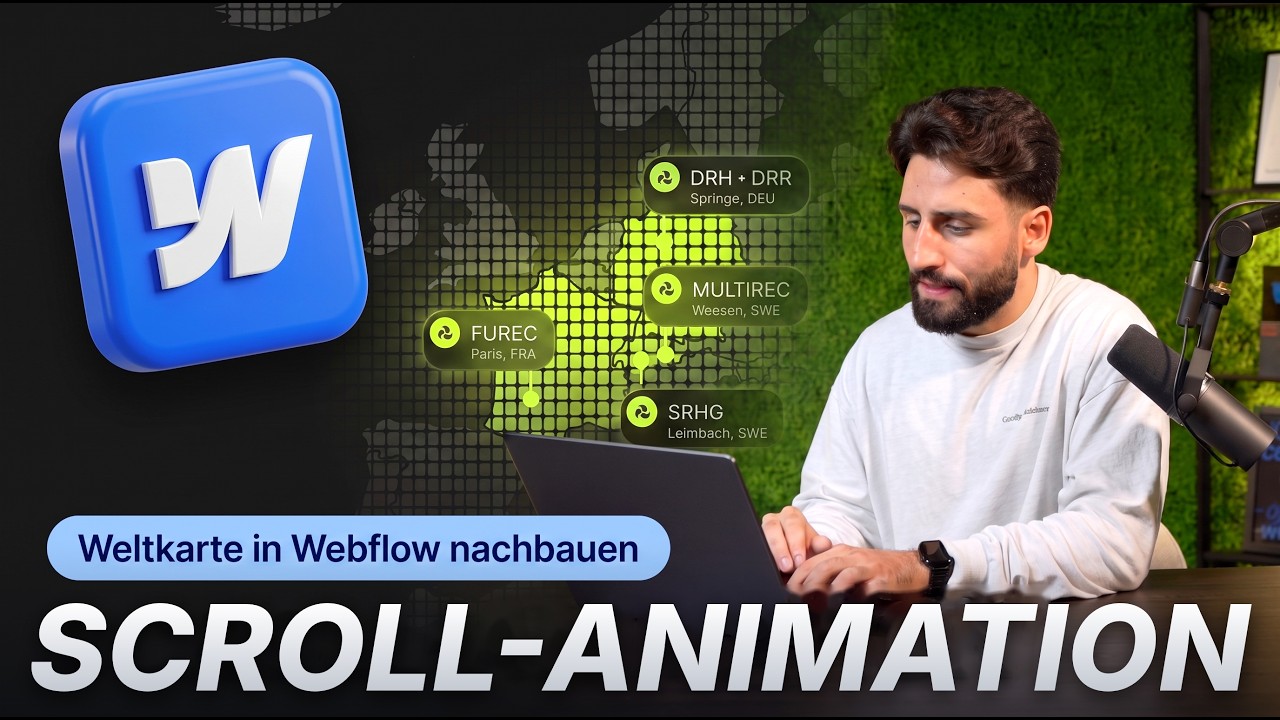
A world map that slowly zooms in on Europe as you scroll, while titles fade in and out and the locations pop up one after another. That looks like a video. But it isn't. We built the effect for the website of DRH Rohstoffhandel entirely in Webflow, with Interactions with GSAP, without video and without Lottie. In this guide, we show you the principle behind it so you can rebuild the effect for your own project. You'll find the full tutorial with every click in the Designer in the video further down.
Why a map that moves as you scroll?
DRH is an internationally active commodities trader. The rebranding was about making reliability, precision and exactly this international role visible. A static map with a few dots doesn't tell that story. A map that travels from the whole world to Europe as you scroll and shows the locations there does. Visitors control the movement themselves, and that's exactly what makes it tangible.
That's the core of good scroll animations: they explain something instead of just decorating. Every movement has a job. Here, the job is: show that this company trades worldwide and is still at home in Europe. If you want to read more about how we use motion on websites, take a look at our Motion Design page.
The principle: three building blocks
The whole animation consists of three parts that work together:
- A long scroll distance. It sets the pace.
- A sticky wrapper. It keeps the map in view while you scroll through the distance.
- A timeline. It links every scroll point to a state of the map.
Once you understand these three things, you can build almost any scroll-driven scene, not just maps. Product fly-throughs, numbers that build up, or a process that appears step by step: it's always the same pattern.
Set up a clean structure in the Navigator
Before anything is animated, the structure is in place. On the outside is a section. It's the stage and the scroll distance at the same time. Inside it sits the sticky wrapper, and inside that are the individual layers: world map, Europe map, the two titles and the location pins.
Each layer gets its own descriptive class name. That sounds like a small detail, but it saves you a lot of searching in the timeline later. When you're assigning 16 actions, you don't want to guess whether “Div Block 14” is the second title or a pin. In the video, we go through the Navigator layer by layer and show how we name the layers.
Styles: 700 VH as a speed control
The section gets a height of 700 VH. That's the scroll distance, and it's your speed control: the longer the distance, the slower the animation runs per scroll movement. If it feels too hectic, make the section taller. If it drags, shorten it. You don't have to touch a single action for this.
So that the map doesn't simply scroll away upwards, it sits in a sticky wrapper. It sticks to the top edge as long as you're inside the section. Overflow hidden makes sure nothing sticks out over the edge while zooming and no scrollbars appear.
Layers with absolute position and z-index
World map, Europe map, titles and pins sit on top of each other. For this, they get absolute position and a clean z-index: maps at the bottom, titles above them, pins at the very top. That way you can fade each layer in and out independently without anything shifting in the layout.
The location pins are absolutely positioned too. That's what allows them to appear individually and one after another later, without affecting the map underneath.
The interaction: scroll trigger with scrub and smooth
Now Interactions with GSAP comes into play. The trigger is scrolling through the section. Two settings make the difference:
- Scrub ties the animation directly to the scroll position. If you scroll back, it runs backwards.
- Smooth smooths out the movement so it doesn't stutter when someone scrolls quickly.
With scrub, an animation that simply plays turns into a scene that visitors control themselves. That's exactly what makes the effect so pleasant: it's never faster than the person scrolling.
Timeline with 16 actions
A single timeline holds 16 actions: fading in the first title, switching from the world map to the Europe map, the zoom, the second title and the pins that appear one after another. Because everything is in one timeline, the order always stays the same, no matter how fast someone scrolls.
Our timing tip: think in sections of the scroll distance, not in seconds. Each action gets its place along the distance, and slight overlaps make the transitions feel smooth instead of choppy. We show the exact order and values in the video, directly in the timeline.
A camera move with just one image
The zoom looks like a camera move. Technically, it's a single image that is scaled and moved via the timeline. That has three advantages: the page stays lightweight, the movement is razor sharp because there's no compressed video in between, and it responds to every scroll movement without delay.
Then the Europe map takes over. It fades in while the world map disappears, joined by the second title and the pins. To the visitor, it looks like one continuous flight.
Conditional playback for tablet and mobile
Not every animation suits every device. With conditional playback, you define on which breakpoints the interaction runs. That way you can build a separate, calmer version for tablet and mobile or deliberately control the animation differently there. You can see how we set this up for DRH in the video from minute 11:19.
Our tip: always test the animation on a real phone. Scrolling in the Designer feels different from scrolling with your thumb.
The video to follow along
In the video, we show you every step directly in the Webflow Designer, from the structure to the finished timeline. The chapters help you jump straight to the part you need.
Want an animation like this for your own website, but don't want to build it yourself? Then see how we approach web development, or request your project directly. You'll find more videos from our day-to-day work on our YouTube page, and you can read how we explain complex software in a single website hero in our guide to the syte case.
FAQ
Do I need custom code for an animation like this?
No. The world map animation is built entirely with the native Interactions with GSAP in Webflow, without custom code, without video and without Lottie.
How do I control how fast the animation runs?
With the height of the section. For DRH, it's 700 VH. More height means more scroll distance and therefore a slower animation.
Why does the map stay in place while scrolling?
Because it sits in a sticky wrapper. It sticks to the top edge while you scroll through the section. Overflow hidden cuts off anything that would stick out over the edge while zooming.
Does the animation work on mobile too?
With conditional playback, you define per breakpoint whether and how the interaction runs. That way tablet and mobile get a suitable version.
Why an image instead of a video?
A single image that is scaled and moved stays sharp, loads faster and responds directly to the scroll position. A video would have to be tied to the scroll with a lot of effort.
More guides
All guides